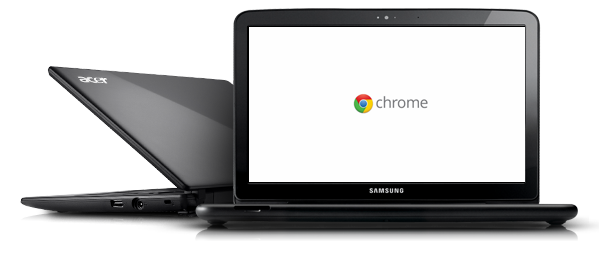
Although much of my time these days is either spent planning and preparing for our district to go fully 1:1 next school year when we issue Google Chromebooks to almost all of our students or coaching my seven year old son's two different soccer teams, I do try to keep an eye on the future. At the rapid pace that technology is evolving, it's almost impossible to keep up and yet I feel it's my job to make sure my district is prepared for, well, who knows what. The who-knows-what that I've been most interested in are the developments being made with augmented reality. Wikipedia defines augmented reality as being the "live, direct or indirect, view of a physical, real-world environment whose elements are augmented by computer-generated sensory input such as sound, video, graphics or GPS data." There are already a number of products on the market that utilize augmented reality and I truly believe that they could become the next major transformative tools in education. So I found it both funny and ironic today that, during a presentation to our faculty, our Assistant Superintendent for Curriculum and Instruction (@LeydenASCI) used a video clip from Back to the Future showing Marty McFly on a hover board and suggested that that this type of future may not be all that far away and then soon after the presentation learned that Google announced that they have begun testing their new augmented reality glasses. I quickly remembered an inspiring video I came across a few years ago from a graduate student titled Augmented Reality - The Future of Education and am excited to see how his vision is now close to becoming a reality. Thanks Google!
One students dream back in 2009...
is getting closer to becoming a reality today thanks to Project Glass.
I just came across the following presentation by Richard Byrne (@rmbyrne) on his Free Technology for Teachers blog. This is a great introduction into getting more out of Google Maps. Some of the features he covers include the following:
Changing views and activating information layers
Adding Maps Labs features
Measuring distances
Creating and saving a personalized map
Adding collaborators to a personalized map
Adding placemarks
Embedding links, images, and videos into placemarks
Drawing paths between placemarks
I thought I knew Google Maps, but always manage to learn something new from Richard. A big thanks to him for sharing his slides and his knowledge.
Let me start by saying that I only wish I could take credit for the slides below. These are great! This slide deck was put together by Chad Kafka (@chadkafka) and includes a few items specific to his school, but the information can easily be transferred to any Google Apps for Education domain. For those teachers new to using YouTube in the classroom and even the veterans, there will be something you can learn in these slides. Way to go Chad, and thanks for sharing!
Mark your calendars now. On Wednesday, March 21 from 2:00-3:00 pm CT, T.H.E. Journal will host a webinar on Chromebooks for Education.
Presented by:
Jaime Casap
(@jcasap) Senior Education Evangelist Google
Jason Markey (@jmarkeyAP) Assistant Principal East Leyden High School
Bryan Weinert (@LeydenTechies) Director of Technology Leyden CHSD 212 <--- Hey, that's me :-)
Moderated by: Linda Briggs, contributing editor, T.H.E. Journal
Jason and I will be sharing how and why our district has chosen to move to a 1:1 environment in the 2012-2013 school year when almost every one of our 3,500 students will be issued a Google Chromebook.
The International Society for Technology in Education (ISTE) has just released some great new resources related to computational thinking (CT). You can find the following along with other resources on their website at http://www.iste.org/learn/computational-thinking.aspx.
The following video shows a great way to use screencasts to provide feedback to students on their digital assignments. This comes from Amy Mayer's Fried Technology blog. I absolutely love this concept and think that pairing a verbal response to student work with all the great written collaboration that can take place today (i.e. Google Docs comments) is just outstanding. While this video specifically demonstrates the use of the free Jing screencasting application and Google Docs, I think it can easily be expanded to other screencast tools and used to provide feedback on almost any type of digital work. Well, maybe not multimedia projects that have sound, but just about everything else. For example, you could create a screencast with your feedback as you navigate through a student's slideshow, digital presentation, Themeefy or Storify project, and much more. I especially like this idea in language classes as it allows for teachers to provide verbal feedback in the language being studied. Although this process does require a little investment of time to setup the first time you run through it, I think the overall benefit would be well worth it.